-
 Hızlı Kargo
-
 Güvenilir Alışveriş
h2>Contents (Hızlı Menü)
- 1 Introduction / Tanıtım
- 2 TECH SPECS / Teknik Özellikler
- 3 Details / Ayrıntılar
- 4 Elements and Interface / Elemanlar ve Arayüzler
- 5 Specialized Functions of Some Pins / Bazı Pinlerin Özel Fonksiyonları
- 6 Tips / İpuçları
- 7 Detailed Use with ARDUINO Software as follows / ARDUINO Yazılımı Ayrıntılı Kullanımı
- 7.1 Step1 | Download the Arduino environment (IDE) / Arduino Ortamını (IDE) indirme
- 7.2 Step2| Connect the board / Kartı Bağlama
- 7.3 Step3| Select the Arduino Board / Arduino Kartın Seçilmesi
- 7.4 Step4| Select the Serial Port / Seri Portun Seçilmesi
- 7.5 Step5| Upload the Program / Programın Yüklenmesi
- 7.6 Step6| Open the Serial Monitor / Seri Monitörü Açma
- 8 Package Included / Paket İçeriği
- 9 Other Resources / Diğer Kaynaklar
Tanıtım
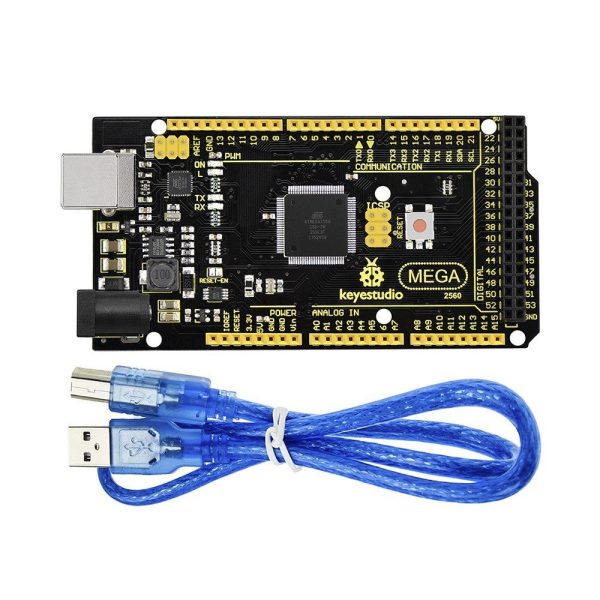
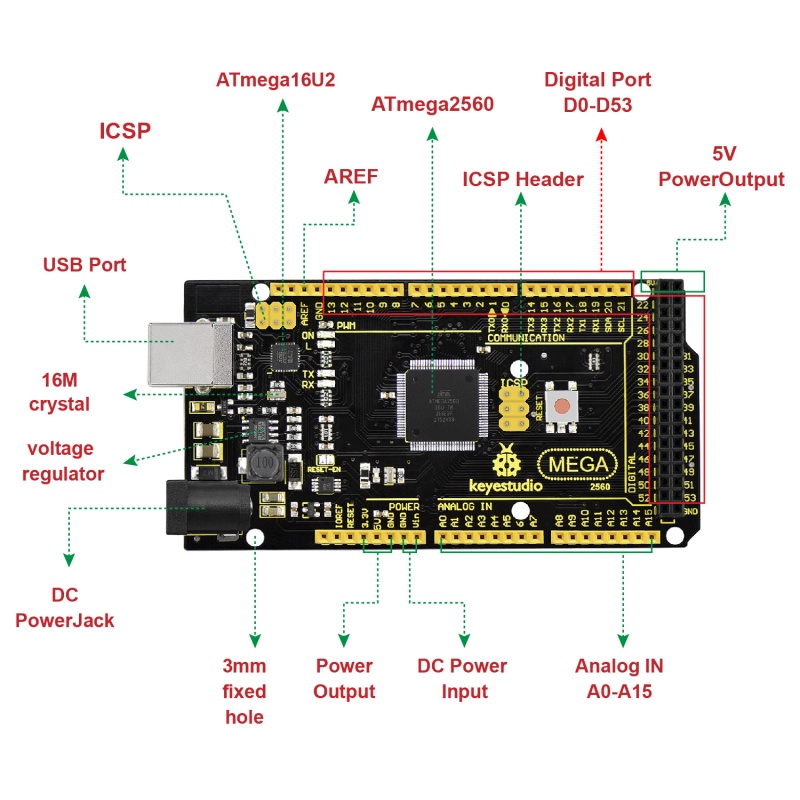
Keyestudio Mega 2560 uyumlu Advanced, Keyestudio Mega 2560 R3 kartı ve ARDUINO MEGA 2560 REV3 ile tam uyumlu ATMEGA2560-16AU tabanlı bir mikrodenetleyici kartıdır.
54 dijital giriş / çıkış pini (15 tanesi PWM çıkışı olarak kullanılabilir), 16 analog giriş, 4 UART (donanım seri bağlantı noktası), 16 MHz kristal osilatör, USB bağlantısı, güç girişi, 2 ICSP başlığı, ve bir sıfırlama düğmesi.
Mikrodenetleyiciyi desteklemek için gereken her şeyi içerir. Önyükleyici ile program doğrudan USB ile indirilebilir ve başka bir harici programlayıcı kullanmanıza gerek yoktur.
Başlamak için sadece USB kablosuyla bir bilgisayara bağlayın veya harici bir DC güç jakı (DC 7-12V) veya Vin / GND (DC 7-12V) dişi başlıklarıyla güç verin.
Not: keyestudio MEGA 2560 uyumlu kart Gelişmiş ve keyestudio MEGA 2560 R3 kart arasındaki en önemli fark kartta kullanılan voltaj regülatörü çipidir. Keyestudio MEGA 2560 R3 kartında kullanılan voltaj regülatörü çipi NSP1117’dir. Harici güç, çıkış 5V bağlandığında, sürücü akımı 1A’dır. Ancak, keyestudio MEGA 2560 uyumlu anakart Gelişmiş voltaj düzenleyici çip MP2307DN içerir. Harici güç, çıkış 5V bağlandığında, sürücü akımı 2A olabilir.
MEGA 2560 daha karmaşık projeler için tasarlanmıştır. 54 dijital G / Ç pini, 16 analog giriş ve çiziminiz için daha geniş bir alan ile 3D yazıcılar ve robotik projeleri için önerilen karttır. Bu, projelerinize geniş alan ve fırsatlar sunar.
| keyestudio MEGA 2560 compatible board Advanced | keyestudio MEGA 2560 R3 board | |
|---|---|---|
| voltage-regulator chip | MP2307DN | NSP1117 |
| Power Output | 5V | 5V |
| Drive Current(external power) | 2A | 1A |
| Drive Current(USB power) | 0.5A | 0.5A |
TECH SPECS / Teknik Özellikler
| Microcontroller | ATMEGA2560-16AU |
|---|---|
| Operating Voltage | 5V |
| Input Voltage (recommended) | DC7-12V |
| Digital I/O Pins | 54 (D0-D53) |
| PWM Digital I/O Pins | 15 (D2-D13; D44-D46) |
| Analog Input Pins | 16 (A0-A15) |
| DC Current per I/O Pin | 20 mA |
| DC Current for 3.3V Pin | 50 mA |
| Flash Memory | 256 KB of which 8 KB used by bootloader |
| SRAM | 8 KB |
| EEPROM | 4 KB |
| Clock Speed | 16 MHz |
| LED_BUILTIN | D13 |
Ayrıntılar
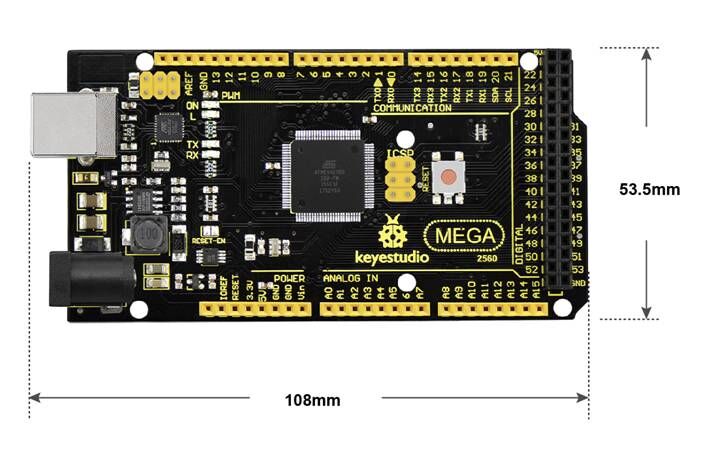
- Boyut: 108mm x 53.5mm x 15mm
- Ağırlık: 33.6g
Elements and Interface / Elemanlar ve Arayüzler
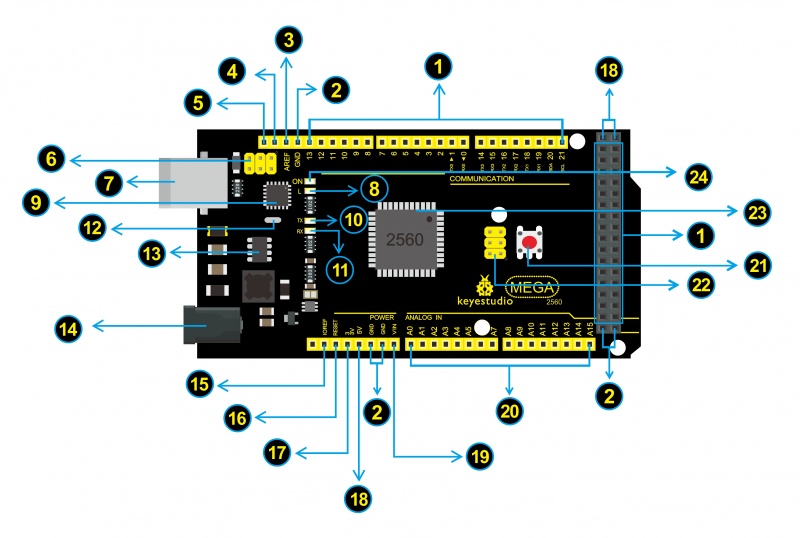
Here is an explanation of what every element and interface of the board does:
 |
Digital I/O
Arduino MEGA has 54 digital input/output pins (of which 15 can be |
 |
GND
Ground pins |
 |
AREF
Reference voltage (0-5V) for analog inputs. Used with analogReference(). |
 |
SDA
IIC communication pin |
 |
SCL
IIC communication pin |
 |
ICSP (In-Circuit Serial Programming) Header
the AVR, an Arduino micro-program header consisting of MOSI, MISO, SCK, RESET, VCC, and GND. Connected to the ATMEGA16U2-MU. |
 |
USB Connection
Arduino board can be powered via USB connector. |
 |
D13 LED
There is a built-in LED driven by digital pin 13. When the pin is HIGH value, the LED is on, when the pin is LOW, it’s off. |
 |
ATMEGA 16U2-MU
USB to serial chip, can convert the USB signal into serial port signal. |
 |
TX LED
Onboard you can find the label: TX (transmit) |
 |
RX LED
Onboard you can find the label: RX(receive ) |
 |
Crystal Oscillator
How does Arduino calculate time? by using a crystal oscillator. |
 |
Voltage Regulator
Convert an external input DC7-12V voltage into DC 5V, then switch DC |
 |
DC Power Jack
Arduino board can be supplied with an external power DC7-12V from the DC power jack. |
 |
IOREF
This pin on the board provides the voltage reference with which the |
 |
RESET Header
Connect an external button to reset the board. The function is the same as reset button. |
 |
Power Pin 3V3
Provides 3.3V voltage output |
 |
Power Pin 5V
Provides 5V voltage output |
 |
Vin
You can supply an external power input DC7-12V through this pin to Arduino board. |
 |
Analog Pins
Onboard has 16 analog inputs, labeled A0 to A15. |
 |
RESET Button
You can reset your Arduino board, for example, start the program from the initial status. You can use the RESET button. |
 |
ICSP (In-Circuit Serial Programming) Header
the AVR, an Arduino micro-program header consisting of MOSI, MISO, SCK, RESET, VCC, and GND. |
 |
Microcontroller
Each Arduino board has its own microcontroller. You can regard it as the brain of your board. |
 |
Power LED Indicator
Powering the Arduino, LED on means that your circuit board is correctly powered on. If LED is off, connection is wrong. |
Specialized Functions of Some Pins / Bazı Pinlerin Özel Fonksiyonları
- Serial Communication: D0 (RX0) and D1 (TX1); Serial 1:
D19 (RX1) and D18 (TX1); Serial 2: D17 (RX2) and D16 (TX2); Serial 3:
D15 (RX3) and D14 (TX3).
Used to receive (RX) and transmit (TX) TTL serial data. Pins 0 and 1
are also connected to the corresponding pins of the ATmega16U2
USB-to-TTL Serial chip.
- PWM Pins (Pulse-Width Modulation): D2 to D13, and D44 to D46.
Provide 8-bit PWM output with the analogWrite() function.
- External Interrupts: D2 (interrupt 0), D3 (interrupt 1), D18 (interrupt 5), D19 (interrupt 4), D20 (interrupt 3), and D21 (interrupt 2).
These pins can be configured to trigger an interrupt on a low level, a rising or falling edge, or a change in level. See the attachInterrupt() function for details.
- SPI communication: D53 (SS), D52 (SCK), D51 (MOSI), D50 (MISO).
These pins support SPI communication using theSPI library. The SPI
pins are also broken out on the ICSP header, which is physically
compatible with the Arduino Uno.
- IIC communication: D20 (SDA); D21 (SCL). Support TWI communication using the Wire library.
Tips / İpuçları
- Automatic (Software) Reset:
Rather than requiring a physical press of the reset button before an
upload, the Mega 2560 board is designed in a way that allows it to be
reset by software running on a connected computer.
- The Mega 2560 board contains a trace that can be cut to disable
the auto-reset. The pads on either side of the trace can be soldered
together to re-enable it. It’s labeled “RESET-EN”. You may also be able
to disable the auto-reset by connecting a 110 ohm resistor from 5V to
the reset line; see this forum thread for details.
Detailed Use with ARDUINO Software as follows / ARDUINO Yazılımı Ayrıntılı Kullanımı
Step1 | Download the Arduino environment (IDE) / Arduino Ortamını (IDE) İndirme
When you get the Mega 2560 development board, first you should install the Arduino software and driver.
We usually use the Windows software Arduino 1.5.6 version. You can download it from the link below:
https://www.arduino.cc/en/Main/OldSoftwareReleases#1.5.x
Or you can browse the ARDUINO website to download the latest version from this link, https://www.arduino.cc, pop up the following interface.
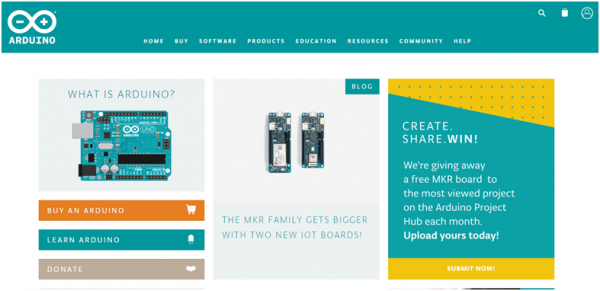
Then click the SOFTWARE on the browse bar, you will have two options ONLINE TOOLS and DOWNLOADS.
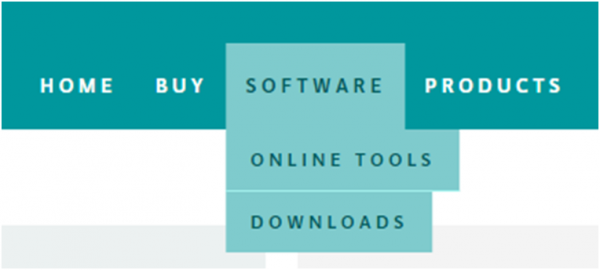
Click DOWNLOADS, it will appear the latest software version of ARDUINO 1.8.5 shown as below.
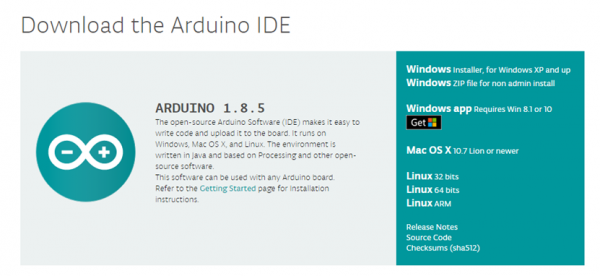
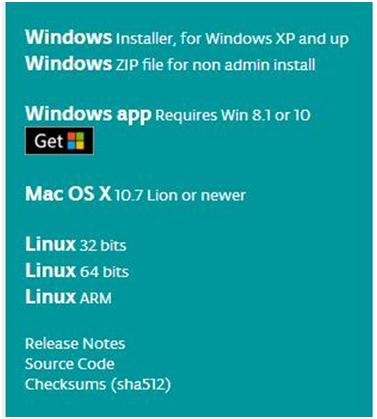
In this software page, on the right side you can see the version
of development software for different operating systems. ARDUINO has a
powerful compatibility. You should download the software that is
compatible with the operating system of your computer.
We will take WINDOWS system as an example here. There are also
two options under Windows system, one is installed version, the other is
non-installed version.
For simple installed version, first click Windows Installer, you will get the following page.
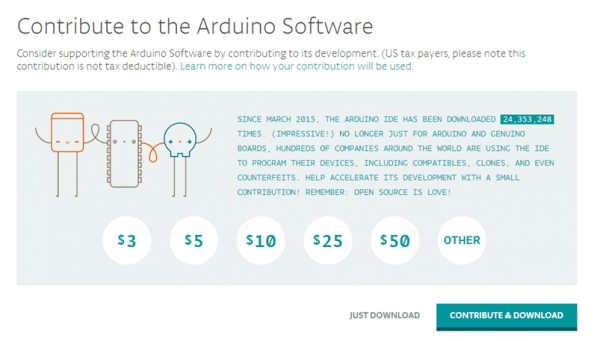
This way you just need to click JUST DOWNLOAD, then click the downloaded file to install it.
For non-installed version, first click Windows ZIP file, you will also get the pop-up interface as the above figure.
Click JUST DOWNLOAD, and when the ZIP file is downloaded well to your
computer, you can directly unzip the file and click the icon of ARDUINO
software to start it.
Installing Arduino (Windows) / Arduino Kurma (Windows)
Install Arduino with the exe. Installation package downloaded well.
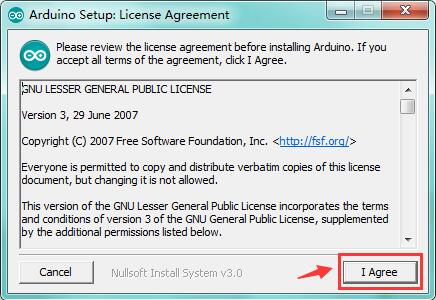
Click”I Agree”to see the following interface.
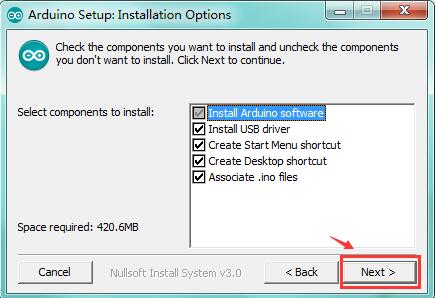
Click “Next”. Pop up the interface below.
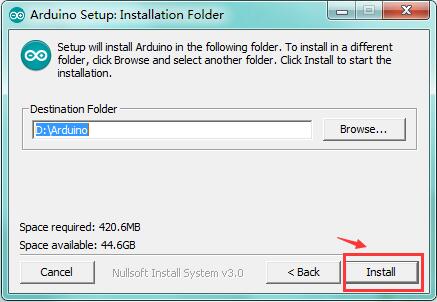
You can press Browse… to choose an installation path or directly type in the directory you want.
Then click “Install” to initiate installation.
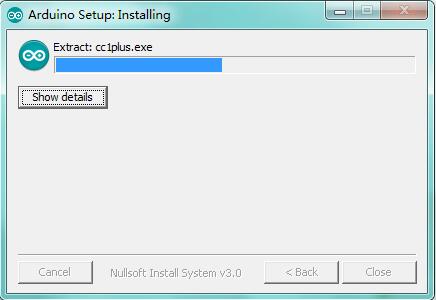
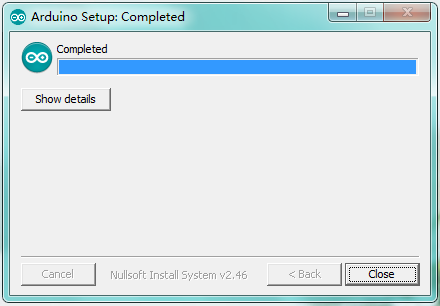
Wait for the installing process, if appear the interface of
Window Security, just continue to click Install to finish the
installation.
Installing Driver / Sürücü Kurma
Next, we will introduce the driver installation of Mega 2560 R3
development board. The driver installation may have slight differences
in different computer systems. So in the following let’s move on to the
driver installation in the WIN 7 system.